
Top ranked fleet tools in GpsGate
The data is in! Here are 3 of GpsGate’s most-used tools, why thousands of fleet professionals loved them, and why you’ll love them too.
Top GpsGate UI elements for fleet insight
Over the year, we gathered data on the most used fleeting tracking tools in GpsGate. Among the most popular were Tracks, Charts, and Events. These UI tools provide either real-time or historical data that fleet managers use to make better decisions.
Tracks uncover historical fleet data
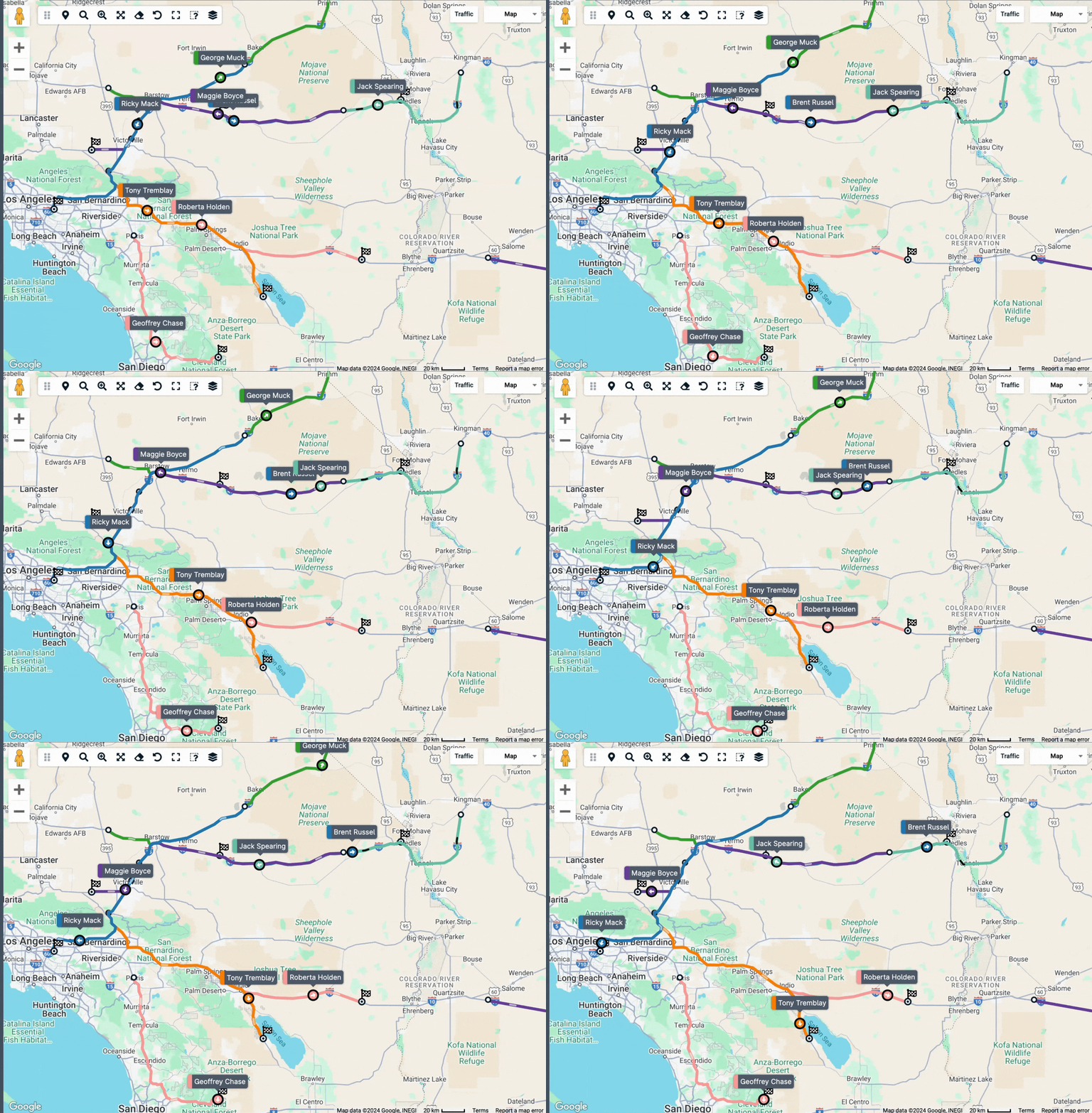
The Tracks panel is there for you to interact with historical fleet data. Our users love this tool because in short, it's an overview of where vehicles have been and what they’ve been up to.
The Tracks panel is a layered UI element. In addition to providing insights into where vehicles have been, clicking on a Track displays a track point, which provides a snapshot into the vehicle’s journey. Tracks also has a “show replay” feature, which displays an interactive course of a driver’s route. Users can also replay Trips in our mobile Fleet app for insights on the go!
With this data only a few clicks away, GpsGate users can easily learn how long vehicles stood still, how fast they were going, and how long their journey took.
Discover more about Tracks in our article →
Charts shed light on fleet trends and outliers
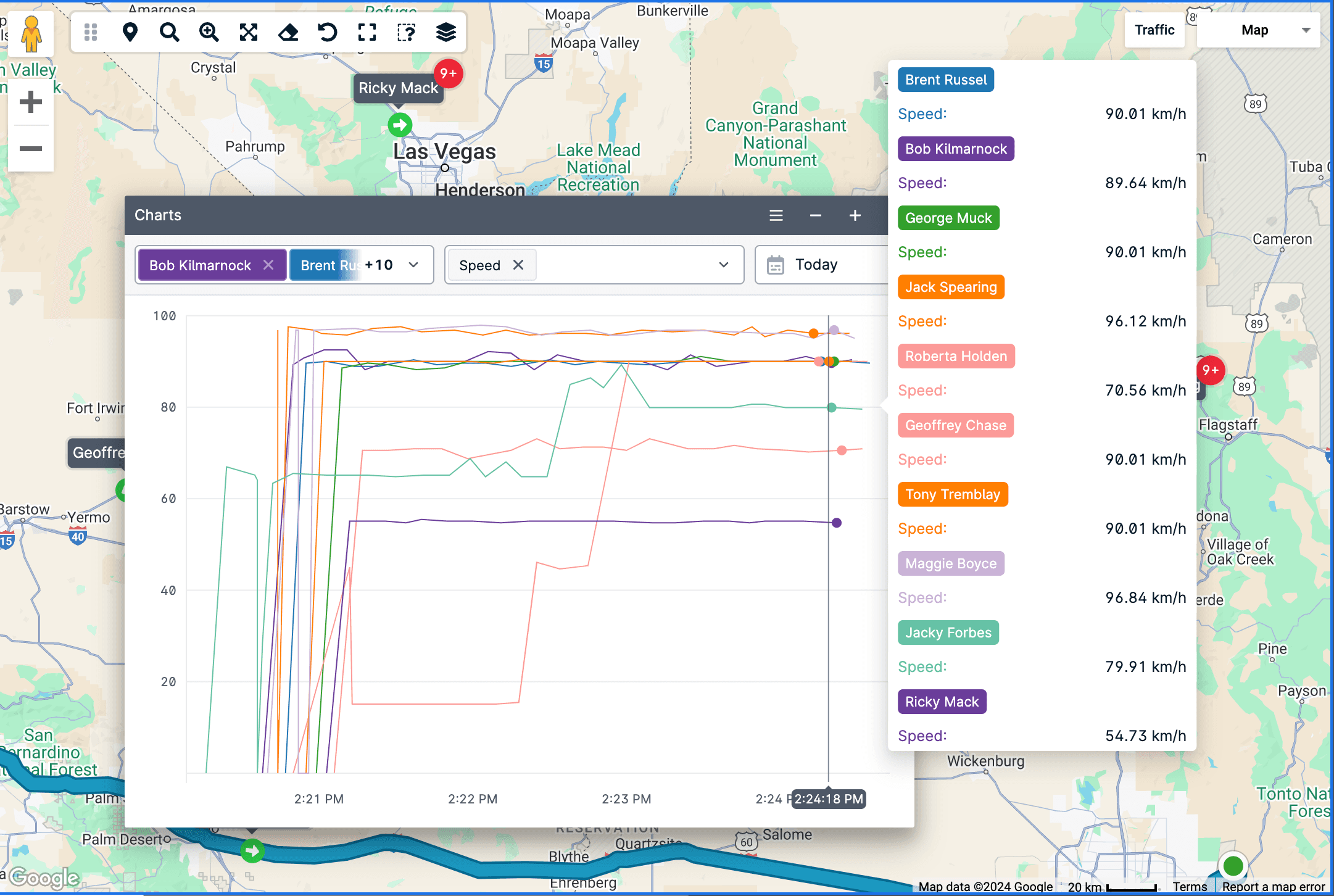
Closely linked to the Tracks panel is the Charts window. Where Tracks let you playback your fleet’s behavior, Charts allow you to plot this behavior onto a colorful graph. The benefit? Full visibility into fleet trends, and the ability to track down any outliers.
The Charts window is discoverable via the Main Menu → Window. Within it, you can select vehicles and signals, such as speed, harsh behaviors, or temperature to get insights into fleet performance. Go a step further by selecting an area on the graph, and find the designated track point to dive even further into the details.
With the data displayed by the Charts window, users can quickly compare fleet data, and identify any exceptions.
The Event panel provides full visibility into fleet behavior
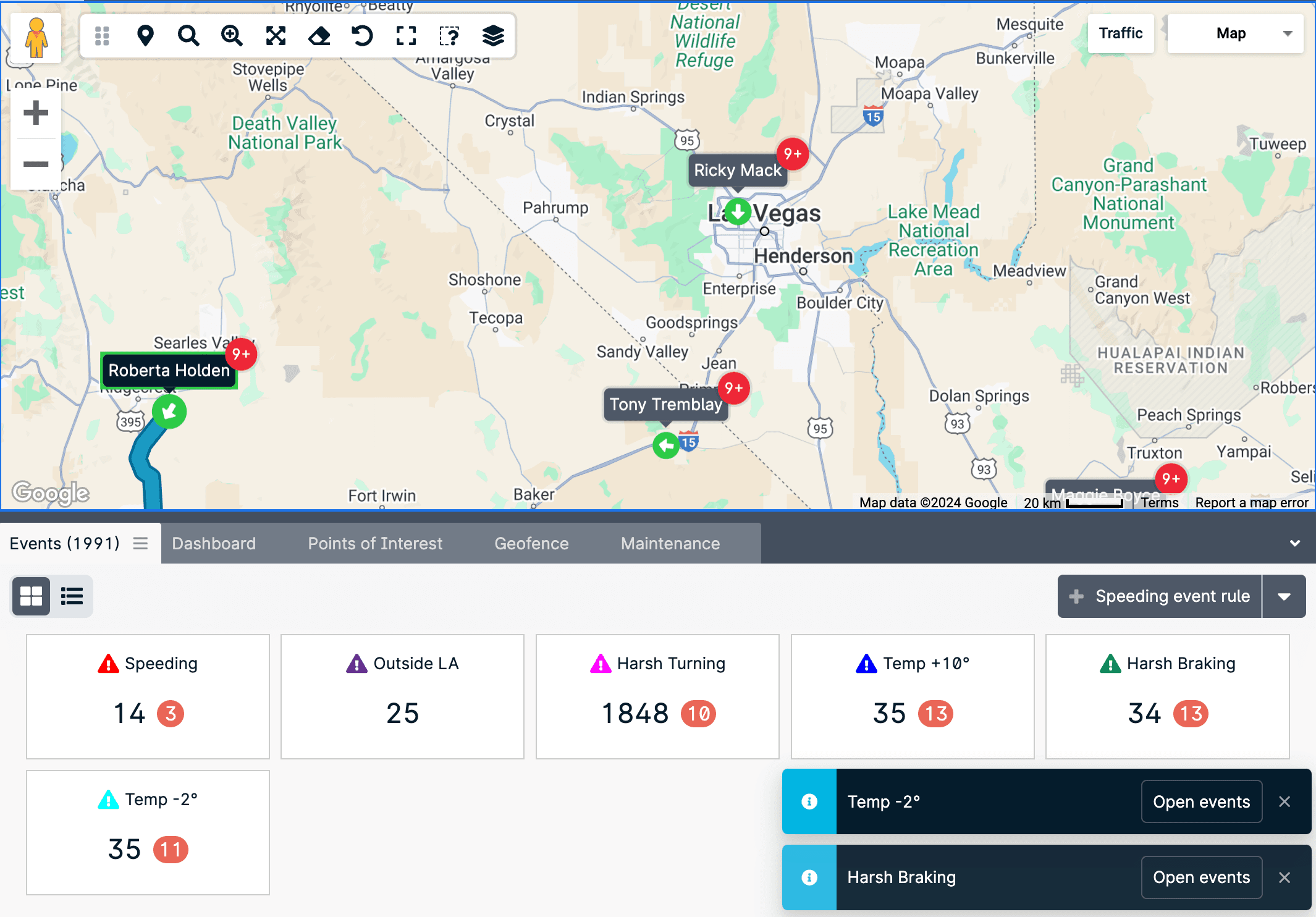
It's no surprise that our Events panel was one of the most used UI elements. Fleet managers use events to track key fleet behavior. From speeding, to harsh breaking, entering a geofence, Events notify you as soon as they happen. What’s more, is that this panel also keeps a record of triggered events, giving users the ability to analyze past fleet behaviors.
Within the Events panel, users can close events, edit event rules, and create new event rules - via our event rule wizard, or speeding shortcut. You can export open events, edit notification settings, and plenty more with this robust GpsGate panel.
Once alerted by the Events panel, users may send notifications to drivers, identify new training opportunities, or even take action on fleet safety threats. Events can be tailored to push to a mobile phone via our Fleet app so that operators never miss out on important fleet behavior.
For more on the events panel, read our article →
More GpsGate panels you should know about
From troubleshooting trackers to getting an overview of vehicle status, here are more popular UI elements:
- Terminal window - used to troubleshoot GPS tracker-related issues & send commands
- Commands panel - used to see the commands that have been sent
- Vehicles panel - used to show all vehicle and asset statuses
More GpsGate Resources
Take full advantage of these and more GpsGate tools by getting to know them in our knowledge base. If you’re a self-learner, sign up with GpsGate Academy, and get hands-on with tools like Events, Geofences, and Area Search to solve a real case.

- acceptCookies - We use this cookie to remember if you have closed this window or not.
- country - We use this cookie to serve you country-specific data.
- gg_sessionId - This cookie helps us debug sign-up issues and general errors.
You can read more about cookies and privacy here.